How to Detect and Reduce Resource Overuse in cPanel Accounts
This guide will assist you in identifying and reducing resource overuse to ensure your website maintains optimal performance.
Resource overuse in cPanel accounts can cause performance problems and service interruptions.
Identifying Resource Overuse:
- Check Resource Usage Reports:
- Log in to your cPanel account.
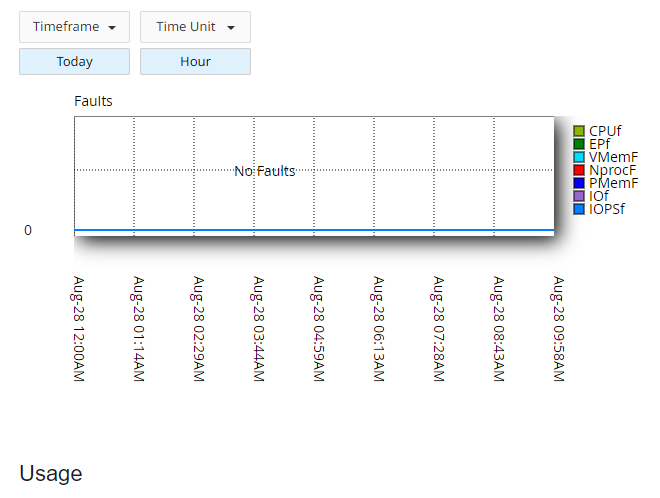
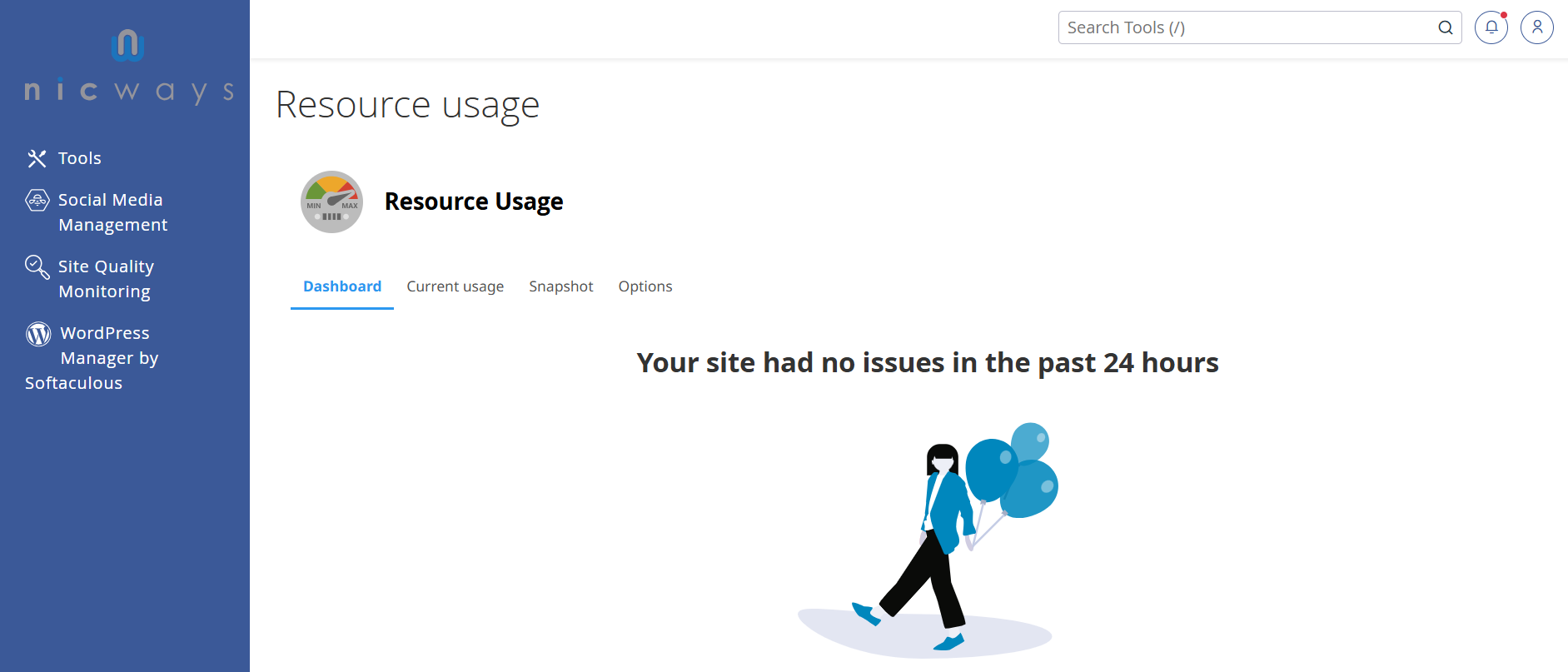
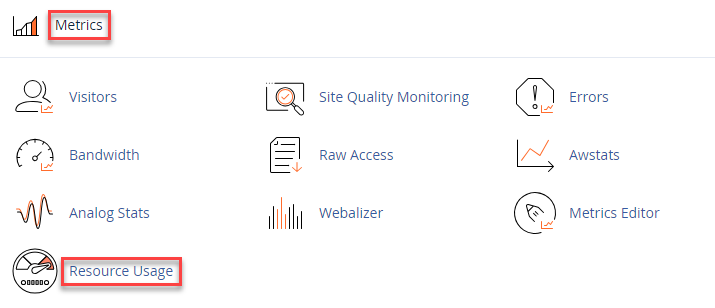
- Go to Metrics and select Resource Usage or Resource Usage Statistics.

- Review the graphs and data for CPU, memory, and I/O usage to identify any spikes or consistent overuse.

- Monitor Processes and Usage:
- Navigate to Advanced and select Process Manager.
- Examine the list of running processes and their resource consumption. High usage by specific processes may indicate overuse.
- Review Bandwidth and Disk Usage:
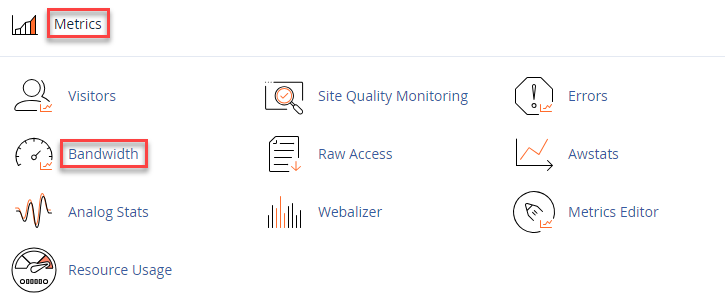
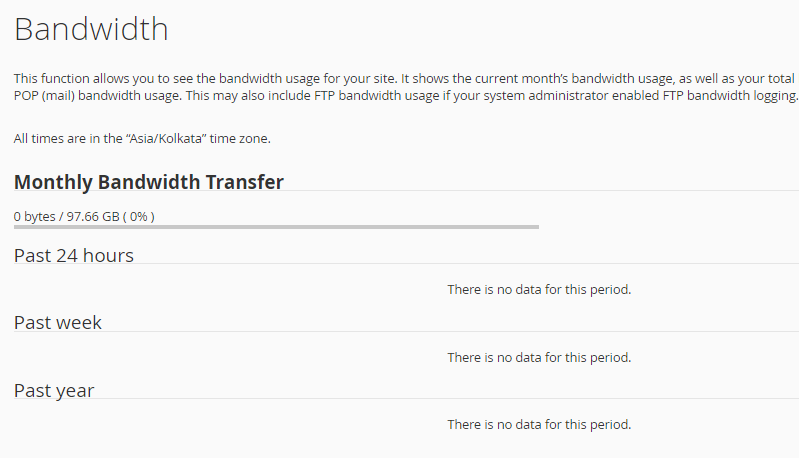
- Go to Metrics and select Bandwidth to view usage trends.

- Check Disk usage to see if any accounts or directories are consuming excessive space.

- Go to Metrics and select Bandwidth to view usage trends.
- Analyse Error Logs:
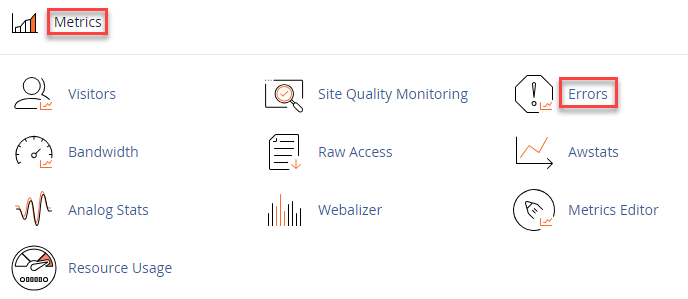
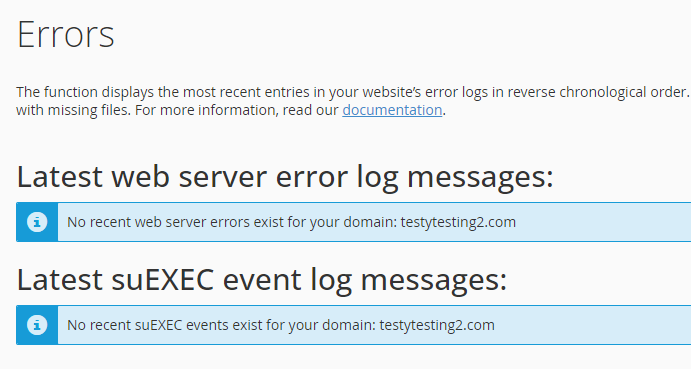
- Access Metrics and choose Errors.

- Review the error logs for recurring issues that might be causing high resource usage.

- Access Metrics and choose Errors.
Mitigating Resource Overuse
- Optimise Scripts and Applications:
- Review and optimise any scripts or applications that are consuming excessive resources. This may involve code improvements or updating software.
- Limit Resource Usage:
- Use Resource Limits under Software to limit CPU and memory usage for specific accounts or applications.
- Use Caching:
- To reduce server load, implement caching solutions such as LiteSpeed Cache or WP Super Cache.
- Upgrade Hosting Plan:
- If resource overuse persists, consider upgrading to a higher hosting plan with more resources.
- Contact Support:
- If you are unable to resolve resource overuse issues, contact your hosting provider’s support team for assistance.
Regularly monitoring and managing resource usage in cPanel helps guarantee stable and efficient performance for your website. By identifying and addressing overuse issues promptly, you can maintain a smooth and responsive hosting environment. For assistance, please get in touch with our support team.

If they are you then need to make sure that the WordPress Database is associated with the correct username and password, you can check this by doing the following;
Step 1
Log into your cPanel account and locate the following, located under the “Database” section
When this application opens, you will then need to make sure that the Database user is associated with the correct database based on the information you gathered from within the wp-config.php file.
Once you have selected the user to add to the correct database, you can then click Add.
Now try to load your blog again. If you still get the same error, try to clear your browser cache. Failing that, go to the section called “Import Database”.
Import Database
Step 1
Using your hosting FTP account, upload the WordPress sql file into your FTP accounts home directory, this is the directory that you are presented with as soon as you connect to the FTP server (The file name will end with .sql).
Step 2
Login to your cPanel hosting account, once connected locate and open phpMyAdmin.
Step 3
Before we continue any further we need to know the name of the database that we are going to import our WordPress database backup into.
To do this, go back to your FTP account and navigate into a folder called “public_html”
This folder contains all your website files, you now need to locate the following WordPress file called “wp-config.php”
If you installed WordPress as a subdomain for example www.domainname.com/blog, this file will be located as follows “public_html/blog/wp-config.php”
If you installed WordPress as the root site the file will be located as follows “public_html/wp-config.php”
Once you have located the wp-config.php file you will need to open it, I am using FileZilla as my FTP client, all I need to do is right click that file and choose “View/Edit”.
when the file opens you will need to locate the line that begins with:
The database name will be shown to the right of the word “DB_NAME”, I have not included mine for security reasons.
Step 4
Once you have located the name of your WordPress Database, you can then return to phpMyAdmin and then select the name of the database.
You will then need to click on the Import tab located at the top of the window.
Then select the option shown below and using the dropdown menu select the name of the database that you uploaded in Step 1.
Once you have done that, Click the Go button, Once you have done this you would have successfully imported your WordPress database.
I hope this helps someone, any issues then please let me know or feel free to add to this guide encase I have missed something.