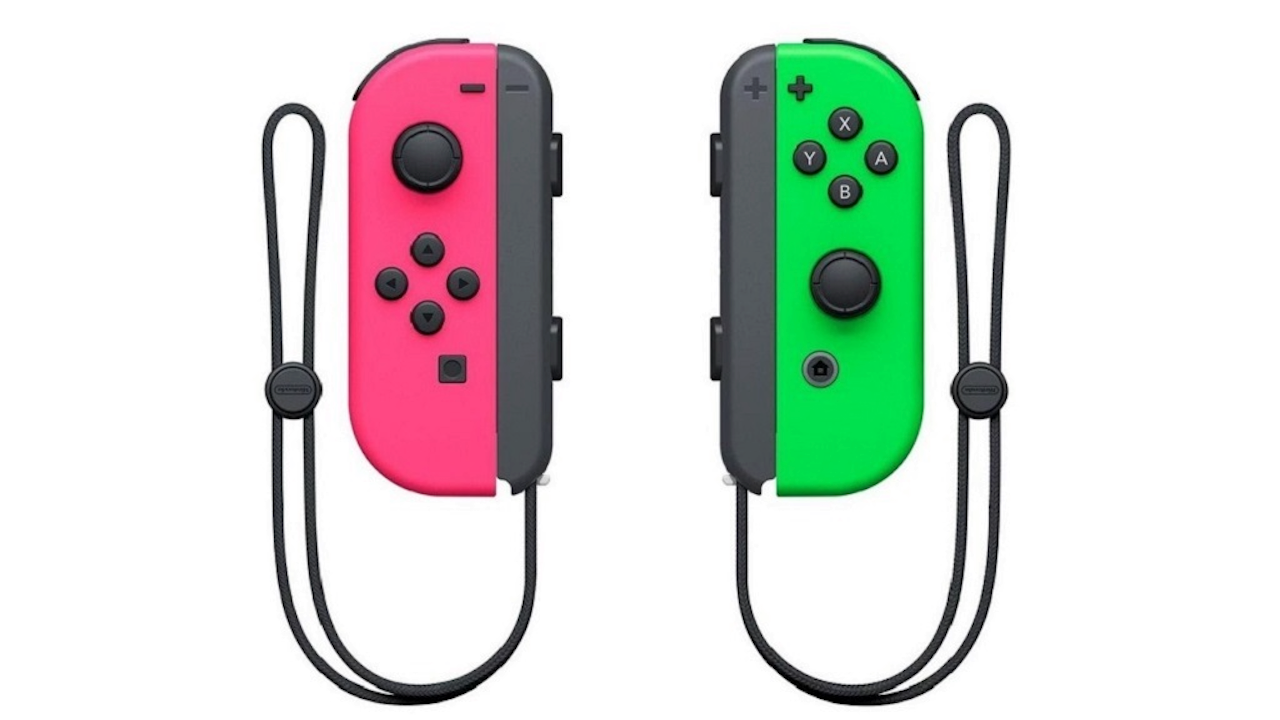
Joy-Con drift is a widespread Nintendo Switch controller drift issue where the Switch’s analog stick registers input even when you’re not touching it. This can make your character or camera move on its own in-game, frustrating many players. The culprit is usually internal wear or debris in the joystick. Over time the Joy-Con’s potentiometer contacts (the little graphite pads) wear down from the metal contact points rubbing on them, and dust or grime can get under the stick. In short, dirt and normal wear-and-tear can fool the Switch into thinking the stick is tilted. Below we’ll deep-dive into why drift happens and show step-by-step fixes – from simple calibration to full DIY repair – and give tips on preventing Joy-Con wear and tear in the future.
What Is Joy-Con Drift? (Nintendo Switch Controller Drift Issue)
Joy-Con drift occurs when your Joy-Con’s joystick (thumbstick) reports movement even when it isn’t being touched. You might notice your character walking or the camera panning by itself. It’s not a game glitch – it’s a hardware problem. Often the left Joy-Con stick is affected, but either can drift. The symptoms include slow movement in one direction, or erratic input, without any button press. Drift isn’t limited to Nintendo devices; many controllers can do this over time. Fortunately, there are fixes.
Common causes:
- Debris/Dirt: Tiny particles of dust, pet hair, or even food can work their way under the rubber thumbstick boot. These specks can bridge contacts on the joystick’s circuit board, leading to false inputs.
- Wear and Tear: Inside each Joy-Con is a potentiometer with soft contact pads. Each time you move the stick, tiny metal contacts press on these pads. After months of use, those pads erode, and metal bits from the contacts can permanently depress them. This physical wear makes the joystick report movement when there is none. In other words, the pads wear down faster than the metal, causing drift over time.
With both dust build-up and pad wear at play, drift can start even in a few months on a well-used controller. Now let’s look at how to fix it.
Fixing Joy-Con Drift: Step-by-Step Troubleshooting
First, try these basic Switch Joy-Con troubleshooting steps before dismantling anything. Often simple fixes can mitigate drift.
1. Recalibrate & Update (Software Fixes)
- Update firmware and system: Make sure your Switch and Joy-Cons are fully updated. In System Settings > Controllers and Sensors, select “Update Controllers” and “System Update” if available. Updated firmware can sometimes improve stick behavior.
- Recalibrate the joystick: Go to System Settings > Controllers and Sensors > Calibrate Control Sticks. Follow the on-screen prompts to redefine the stick’s neutral position. Calibration can fix minor offsets (if the stick wasn’t centered properly), though it won’t cure a worn potentiometer. It’s free and easy, so always try this first.
- Check button mapping and game settings: Some games use tilt or gyro. For example, Mario Kart 8 Deluxe has a tilt feature that can feel like drift. Make sure in-game tilt is off and test the sticks in the Home Menu. The Nintendo support guide notes that oddly mapped controls or tilt settings can mimic stick issues.
2. Cleaning and No-Open Fixes (Beginner-Friendly)
If calibration didn’t help, try cleaning dust and gunk out of the joystick – without opening the Joy-Con. Many players search for “how to fix Joy-Con drift without opening” and there are some quick tricks:
- Compressed air: Turn off your Switch and detach the Joy-Cons. Use a can of compressed air or a hand pump to blow around the base of the stick (under the rubber boot). This can dislodge loose dust.
- Isopropyl alcohol: A commonly recommended method is to gently dab 70% (or higher) isopropyl alcohol on a cotton swab, and swipe around the base of the thumbstick. While rotating or pressing the stick, clean under the silicone cover. This can dissolve sticky residue and lubricate the contacts. (Be very gentle – you’re just removing grime, not flooding the electronics.)
- Contact cleaner spray: For a more targeted approach, there are electronics contact cleaners (like WD-40 Electrical Contact Cleaner). You can spray a short burst into the gap at the base of the stick while holding it over a cloth. Then rotate the stick in all directions for ~30 seconds as the cleaner disperses. Wait a few minutes to dry, then test. An iFixit guide shows this “no disassembly” method – it often restores centering by moving the dirt away. However, note this is usually temporary; it flushes out crud but won’t fix worn contacts.
Early troubleshooting reminder: If none of the above helps, double-check that the issue isn’t game-specific or due to a mapping glitch. Otherwise, it may be time for a deeper repair.
3. DIY Repair: Opening the Joy-Con (Advanced)
For a more permanent fix, you can open and clean or replace the joystick components yourself – but this requires care. (If you’re not comfortable cracking open electronics, consider the next section on professional options.) If you decide to DIY, gather the right tools (precision screwdrivers, plastic prying tools, tweezers) and follow a detailed guide.
Image: Disassembling a Joy-Con to access the thumbstick (Credit: repair site). Removing the back cover lets you clean or replace the analog module.
Here are general steps and tips:
- Remove screws and case: Start by removing the screws on the back of the Joy-Con (the special tri-point screws). Carefully pry off the back shell. Inside you’ll see the battery, circuit boards, and the joystick assembly.
- Clean internal parts: With the case open, you can clean the actual joystick module. An iFixit tutorial suggests removing the stick module and using contact cleaner or alcohol on the black resistive pads and metal wipers. These pads (part of the potentiometer) can hold deposits. Gently swab them in a dust-free environment. Also look for any debris trapped in the plastic parts. This is delicate work – parts are fragile! Some users reassemble the cleaned stick into the Joy-Con for testing.
- Replace the stick module: If cleaning doesn’t fully cure drift, your next step is replacing the joystick. Replacement joystick modules (around $10–$15) are readily available online. Carefully detach the ribbon cable and spring, remove the old stick assembly, and install the new one. (Be sure to keep track of the tiny metal spring and cable clamp.) Once reassembled, recalibrate the new stick via the Switch settings. This typically restores normal function – at least until that new stick ages.
- Consider Hall-Effect replacements: For a long-term solution, you can opt for “hall-effect” replacement modules. These use magnetic sensors instead of contacts, eliminating wear-related drift. Guides exist for installing hall-effect sticks, though they are more expensive. Using iFixit’s left Joy-Con repair guide is recommended here.
- Joy-Con repair tips: Work slowly and keep track of screws. Use ESD-safe tools or a grounded wrist strap if you have one. Don’t force parts – if something’s stuck, check for hidden screws or clips. Be aware that removing lubrication or slightly bending parts can cause other issues. (Some cleaning methods can accidentally strip internal grease, so only open if you’re prepared to carefully clean and re-lubricate.)
If you’re successful, you’ve done the ultimate fix! But if opening up controllers isn’t your thing, there are still other options.
4. Professional Repair or Replacement Options
If DIY is daunting or unsuccessful, consider official or replacement routes:
- Nintendo free repair: Nintendo has acknowledged drift and often offers free repairs. For example, in Europe (and in North America outside warranty) Nintendo will repair or replace Joy-Cons with drift at no charge. Simply register a repair online and mail them your controllers. The downside is downtime (it can take a couple of weeks) and shipping costs/time. But it’s guaranteed genuine repair and free if you qualify. (In the U.S., Nintendo extended a free repair program even for out-of-warranty drift issues.)
- Buy new Joy-Cons: You can always buy a brand-new pair. Standard Joy-Cons cost around $80/pair and come with a fresh 1-year warranty, which might be worth it for some users. If you go this route, look for the best replacement Joy-Cons in reviews (sometimes newer revisions have slight hardware tweaks). Also consider the Nintendo Switch Pro Controller: it’s a sturdier, traditional gamepad (no drift complaints reported), though it’s wired or Bluetooth-only and more expensive.
- Third-party controllers: Some companies make “Joy-Con” style controllers or Pro-style controllers. Quality varies. If you’re exploring alternatives, look for third-party options with hall-effect sticks or those highly rated by gamers. (We can’t recommend specific brands here, but a quick search for “best replacement Joy-Cons” will highlight community favorites.) Just be aware third-party controllers may lack official Nintendo support.
Remember, the goal is a reliable controller. Whether you fix your old Joy-Con or get a new one, persistent drift will ruin gameplay. The fixes above range from easy (recalibrate) to advanced (open up and replace parts) – use whatever level you’re comfortable with.
Preventing Joy-Con Wear and Tear
Once your Joy-Cons are drift-free, you’ll want to keep them that way. Here are friendly preventive care tips to extend their lifespan:
- Keep them clean: Dust and debris accelerate drift. Store and play in a clean area. Periodically wipe around the thumbsticks with a dry cloth or a little isopropyl alcohol. Blow out dust from around the rails and ports now and then.
- Use covers or cases: Silicone thumbstick covers and plastic shells can block debris. When not playing, snap your Joy-Cons onto the Switch or slip them into their plastic sleeves/case. iFixit even suggests keeping Joy-Cons in their original plastic sleeves or a case when not in use.
- Avoid spills: Don’t eat or drink near your controllers. Liquids (including sweat) and food crumbs can corrode contacts and trap gunk under buttons and sticks.
- Gentle handling: Try not to press the sticks flat against any surface or store the controllers with the stick pressed in a corner of a bag. Repeated stress on the stick (like keeping it tilted for a long time) might slightly deform the boot or pad.
- Cool, dry storage: Store controllers away from extreme heat or humidity. Avoid leaving them in direct sunlight or near vents and air conditioners, which can blow dust directly onto them.
By preventing Joy-Con wear and tear with these habits, you’ll minimize the chance of drift showing up early. Think of it as routine controller maintenance – a little care goes a long way.
In Summary
Joy-Con drift is annoying but often fixable. Start with basic calibration and cleaning before moving to advanced repairs. If you’re comfortable, try a DIY fix – cleaning the internals or swapping in a new thumbstick. Otherwise, Nintendo’s free repair program or buying a new controller are solid options. And of course, adopt good habits (clean controllers, safe storage) to prevent drift in the first place.
With the right troubleshooting steps and care, you can beat Joy-Con drift and get back to gaming smoothly. Game on!
Also Read: Micron’s Crucial Exit | Will PC Builders Feel the RAM & SSD Shortage in 2026?